
Contents
The way people honor loved ones has evolved significantly. A static photograph captures a single frozen moment, but a tribute video weaves together images, music, movement, and narration into something that breathes and resonates long after the screen goes dark.
Whether you’re preparing content for a memorial service, a milestone birthday celebration, or a retirement gathering, video has become the format that families trust most to carry genuine emotional weight. The challenge is no longer access to technology — it’s knowing where to start and which tools will actually deliver results worth sharing.
Getting Started With the Right AI Video Platform
Selecting your platform before you plan anything else is a decision that shapes the entire project. The wrong tool creates friction at every stage; the right one removes obstacles you didn’t even know existed.
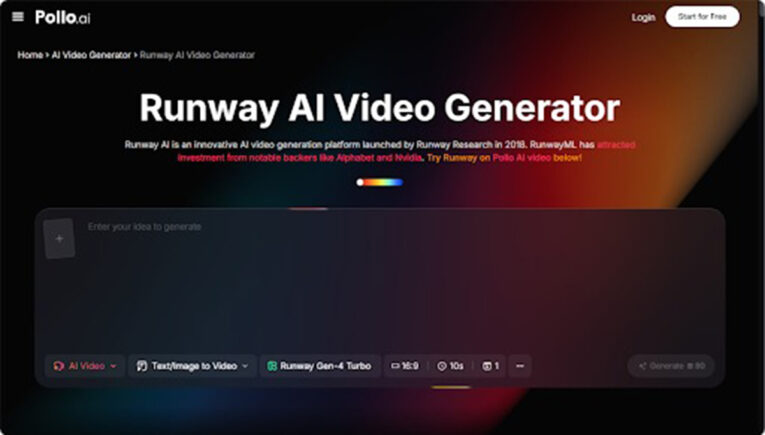
Pollo AI’s Photo Video Maker operates as a fully capable Runway AI environment built specifically to support creators who have no prior video editing experience. The platform handles text-to-video generation, static image animation, motion brush control for targeting movement within specific areas of a photograph, video style transfer, character performance creation, intelligent lip-sync, and frame interpolation for smooth, cinema-quality playback.
Every one of these features is accessible through a clean, beginner-friendly interface that requires no technical background to navigate. Pollo AI’s Photo Video Maker is built on the same Runway AI principles that professional studios rely on — just made genuinely accessible for personal use.
Understanding what the platform can do before you begin gives you creative confidence. You’ll make better decisions about which photos to select, how to structure your narrative, and what kind of output to expect when you hit the export button.

Planning Your Tribute Video: The Foundation Work That Matters Most
Experienced video creators will tell you that production quality is determined largely before any editing begins. The planning phase is where your tribute video either comes together or falls apart.
- Clarify Your Audience and Emotional Goal
Before selecting a single photograph, write down one sentence that answers this question: what do you want viewers to feel when the video ends? Warmth and gratitude? Pride and celebration? Quiet reflection?
That emotional destination governs every choice you make afterward — music tempo, narration tone, color grading, and pacing all flow from this single anchor point. A video made for a funeral service needs a different emotional register than one created for a 70th birthday party, even if both draw from the same photo library.
- Curate Your Photo Collection With Discipline
Pull together every relevant image from cloud storage, external drives, and family members’ devices, then edit that collection ruthlessly. For a two-to-four-minute tribute video, 25 to 35 well-chosen photographs will serve you far better than 80 mediocre ones. Prioritize images with clear focal points, recognizable subjects, and reasonable exposure.
If you’re working with printed photographs, scan them at 300 DPI or higher so they display crisply on modern screens. Variety is essential — include portraits, candid moments, group shots, and location images that collectively tell a complete story.
- Build a Narrative Outline Before Writing Any Script
Map your video’s emotional arc using a simple three-part structure: an opening that establishes who this person is and why they matter, a middle section that explores their relationships and defining moments, and a closing that leaves viewers with a sense of warmth and completion.
This outline becomes your editorial compass and prevents the most common beginner mistake — assembling images without a clear sense of where the video is going emotionally.
Using the AI Tribute Video Maker to Elevate Your Project
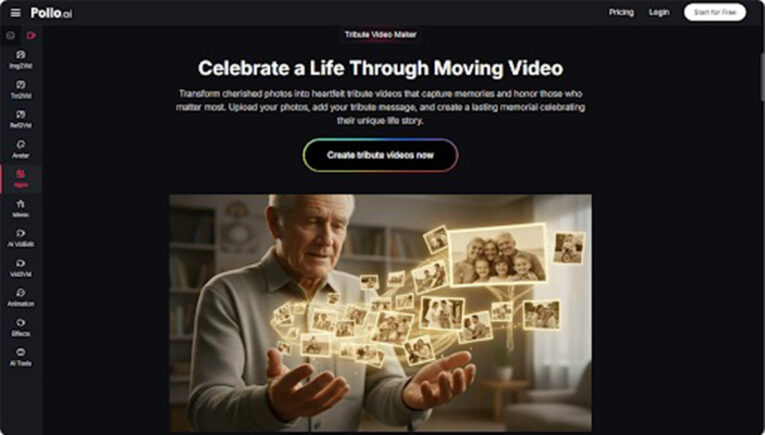
This is where the AI Tribute Video Maker functionality within Pollo AI delivers its most meaningful advantage over generic video tools. Rather than requiring you to record your own voiceover — which many people find emotionally difficult when the subject is someone they’ve lost — the platform generates warm, natural-sounding AI narration from the script you provide.
You paste your text, select a vocal tone that fits the mood, and receive a reading that sounds genuinely human rather than robotic or clinical.The AI Tribute Video Maker also provides background music libraries calibrated specifically for tribute content, along with transition presets designed for memorial and celebratory video contexts.
Upload your photographs, apply your chosen settings, and the platform returns a high-definition video that preserves every meaningful detail of your images with the visual quality they deserve. This combination of features makes it possible to produce something genuinely moving in an afternoon rather than across several stressful days.
Producing the Video: Step-by-Step Walkthrough
Step 1: Write Your Narration Script Using Specific, Personal Language
With your narrative outline complete, write the full script before opening the editing interface. Aim for language that is warm, grounded, and specific rather than broadly sentimental. Read every sentence aloud as you draft it — if it sounds stiff when spoken, revise it until it flows naturally.
“She made every Sunday feel like a celebration” carries far more emotional weight than “She enjoyed spending time with family.” Specificity is what separates a tribute that moves people from one that merely informs them.
Step 2: Animate Your Photos and Build the Timeline
Upload your curated photo collection to the platform and begin applying animation using the motion brush. Add a slow pan across a group photograph, a gentle zoom toward a smiling face, or a subtle drift through a landscape image. These movements transform static prints into living scenes without requiring any manual keyframing or technical expertise.
Arrange your animated images on the timeline according to your narrative outline, building in deliberate pauses around emotionally significant moments. Rushing through powerful images is one of the most damaging pacing mistakes a beginner can make.
Step 3: Apply Transitions, Visual Style, and Music
Select a single visual style preset and apply it consistently across the entire project — warm and soft for an intimate memorial feel, clean and bright for a celebratory tribute. Use cross-fades and dissolves between images rather than hard cuts, which feel abrupt in emotionally sensitive content.
Lay your chosen music track beneath the full video at a volume that supports rather than competes with the narration. Add text captions sparingly: key dates, names, and meaningful quotations work well, but narrating every image with on-screen text creates visual clutter that distracts from the photographs themselves.
Reviewing, Exporting, and Sharing Your Finished Video
Watch your completed video at least twice before sharing it — ideally after stepping away for an hour to reset your perspective. Verify that narration timing aligns with the images it accompanies, that transitions feel smooth rather than mechanical, and that the music fades naturally at the end.
Export at 1080p for most sharing contexts, including social media and private family distribution. If you’re projecting the video at a live service or event, request a 4K export where the platform allows it.
Store your source photographs, narration script, and final video export together in a clearly labeled archive folder. Tribute videos have a habit of becoming family heirlooms, and the materials behind them deserve the same careful preservation as the memories they contain